How Movie and TV Fans Can Make Clearer Review Videos


Movie and TV reviews let you break down the plot twist, share your opinions, connect with fans, and get discovered. A recording should let viewers engage in the review without distractions. You can explain what the writer missed, how the actors handled the scene, and what the ending failed to deliver. Do you want your viewers to struggle with quality issues? Obviously not. However, if your recording is out of focus or viewers can’t see your face, they will have another problem to solve instead of watching the review.
When you make reviews, what you say matters; so does your video. You don’t need to spend on fancy equipment for a good review video. Also, make sure the footage is clear, and your cuts aren’t distracting.
Build Your Review Around an Argument
Ever finished watching a movie and immediately wanted to tell someone why the ending makes no sense? Or found yourself defending a character that everyone else seems to hate? That’s the starting point that viewers are gonna love. Don’t try to retell the entire plot; pick one clear opinion and build your discussion around it.
From the points you discuss to the conclusion you reach, keep your review focused on that argument. Pick the details that support your opinion and explain why they support your review. Before you start recording, plan the whole video. You don’t need to memorise the script; take a few notes and go. If your argument is based on a major reveal or ending, warn the viewers at the start about the spoilers.
Get your recording and editing right
Your main points are solid; your take on the lead actors makes sense, but the video looks grainy, and your face is slightly out of focus. So, what went wrong?
Nothing kills the mood faster than finishing a review video and realising your captured shots are in shadow. Don’t panic: poor lighting could be the major reason. So, before recording, check your camera settings and lighting. Adjust until the video looks clear.
Now check the camera angle and focus; you don’t need the latest phone, just a steady clip at eye level. Wipe the lens to remove dust. Keep an eye on the frame too; you don’t want a frame where half your face is cut off.
Also, don’t forget the sound. If your voice echoes in the video, viewers may struggle to follow your argument. Record a short sample and listen with headphones before starting recording.
When existing footage needs improvement
Sometimes, when you already have a good review, you don’t want to record it again just because the picture looks softer. Video enhancement can improve the visuals. Vmake offers a browser-based workflow for editing existing video. This can be a useful option for the reviewer when preparing the talking-head recording. It may make soft details clearer, but the result depends on the original recording.
Enhance the clip and check the results
Next, move the clip into the Vmake AI video enhancer tool. Upload the video and choose an enhancement mode. It’s an AI enhancement tool that lets you upload clips easily, with a batch upload feature for multiple recordings. It offers several enhancement modes based on the video type and upscales to 2K, 4K, and 8K. Start with a short video and review the results. Compare the enhanced clip with the original one at the same size. Check whether the details look clear, or if your skin looks overly smooth. When you’re happy, export the improved clip and import it into the final edit to add captions or text. Then cut out any extra pauses and keep the originals for future use.
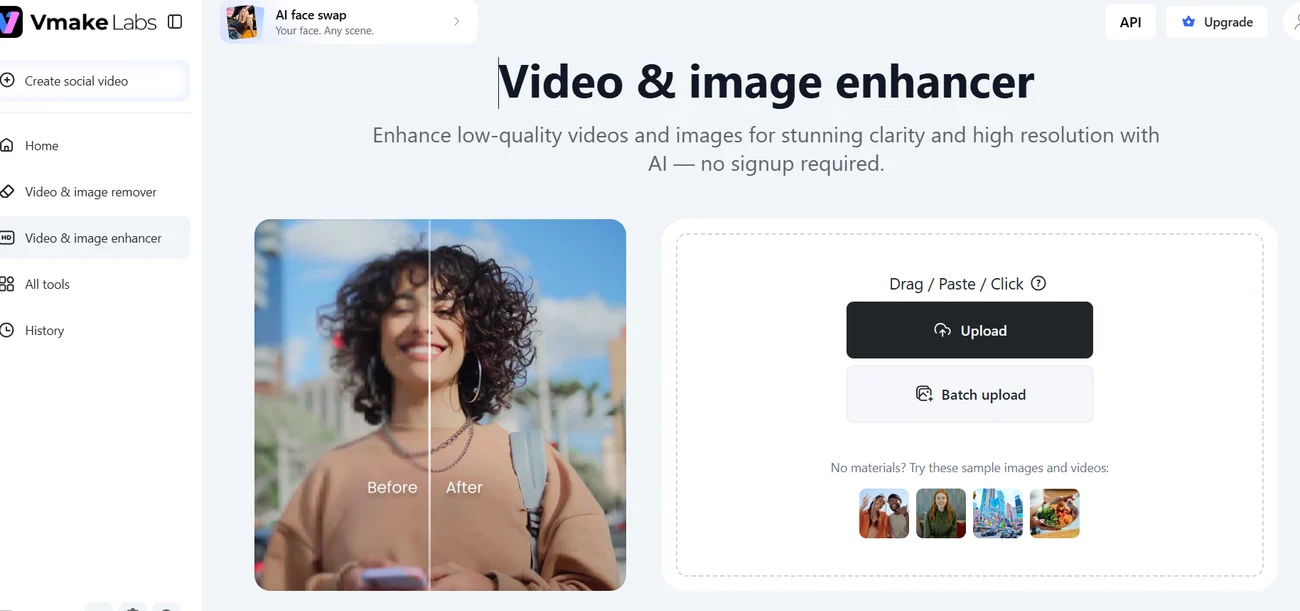
Vmake’s upload screen with a supplied before-and-after sample. Source: Vmake interface. Interface demonstration only.
Keep the edit focused on your review
Now that your footage is ready, focus on what viewers actually want to see. Remove long sentences and sections that don’t go well with your review. If you are discussing character development or moving toward the ending, simple text headings can help viewers follow your point. Adjust the text size on your screen, since not everyone is watching on a desktop.
Use your own footage or material you have permission to include.
Check your video before publishing
Don’t think your video is ready to upload after exporting. You still have work to do on this footage. Check the details and frames once the video is enhanced, as some enhancers can over-sharpen, making the video look unnatural.
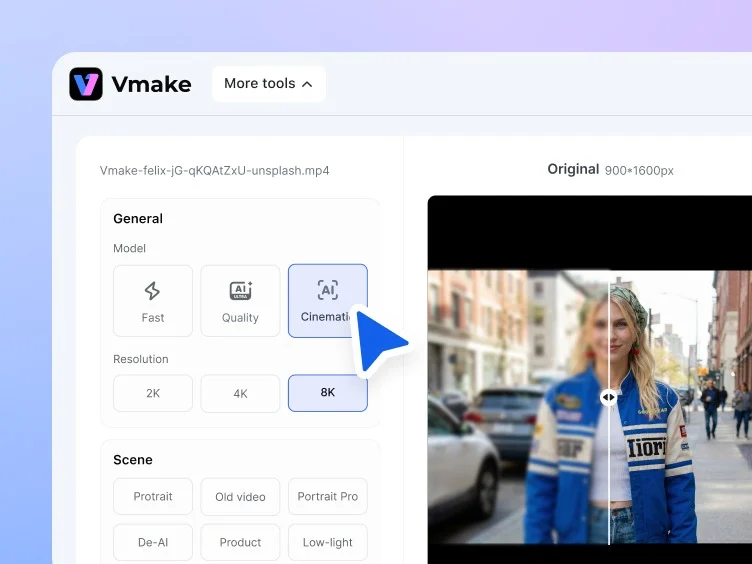
Vmake’s official illustration of enhancement modes, scene options and output resolutions. Source: Vmake Video Enhancer feature page. Product illustration.
Watch the whole video at normal speed to spot any remaining problems. Look out for any other flaws that can distract your viewers. Also pay attention to the opening and conclusion, as viewers should understand them clearly. For spoilers, mention them at the start so viewers won’t regret watching your video later.
Let viewers focus on your opinion
A plot twist can be terrible, a finale can ruin an entire season, and a character can deserve a much better ending. These are the opinions that get movie fans to watch your reviews. But if your video has many flaws, then why would someone stay to watch the full review? So focus on the impact your video has on viewers. Choose a storyline and highlight the performances that deserve more attention. Tell viewers why a scene created so much hype, or why some movies fail to. Your perspective is what separates your review from the dozen others. Your video’s presentation matters too, because viewers follow your expressions. If the recording or image needs a little visual improvement, Vmake can help. You don’t always need a professional video to make it work; start with your opinion.