The Sims 4: Here’s How To Add a Second Floor & Expand Your House



Designing a perfect house for Sim is one of the most vital and enjoyable aspects of any Sims game. You set up the perfect floor plan, pick up the best patterns for your wallpapers, find the perfect window symmetry, and then reach the second floor, or do you? Building a house in Sims 4 is an extremely detailed process with plenty of things to consider. The process can often be further complicated by confusing control and our lack of knowledge about the building mechanics. Placing a second floor in Sims 4 is nowhere near as intuitive as we would like it to be, so we’ve decided to create this guide. Let’s see how to add a second floor in Sims 4?
How do you build a second floor in Sims 4?
No matter how much room you have in Sims 4, there’s always a place for more. Maybe you’ve picked up a new hobby or want to build a separate area for your cats. Perhaps you’ve decided to expand your family or simply want to display your gem collection. No matter your reason for expanding your house, the only important thing is that it is possible.
With several approaches, you can add a second floor to your house in Sims 4 at any time. You can either click the upper floor button, use keyboard shortcuts, or place stairs, which will make the process all the easier. We’ll explain this in more detail in the rest of this post.
Adding a second floor with the “go up the next floor” button
This is the most straightforward way to access the second floor of your Sims 4 house. To do that, follow these steps.
- Open build mode in sims by clicking the corresponding icon or pressing “B.”
- Click the arrow-shaped button in the upper right corner of the screen; it’s right next to the “Save to gallery” button and is easily accessible.
- The only thing left is to add appropriate walls and don’t forget the stairs!
Alternatively, depending on what you had in mind, you can press the PageUp button on your keyboard to go up a floor or PageDown to go down a floor.
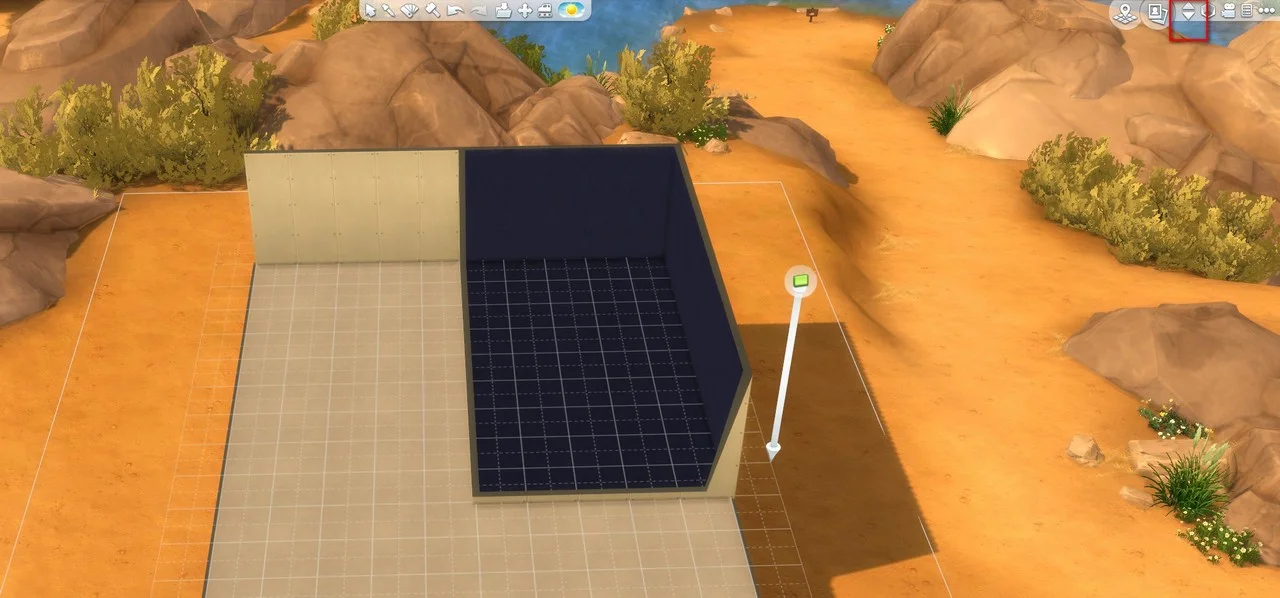
You can build a maximum of four floors in the Sims 4, including the ground floor so keep that in mind while planning your next house.
Adding a second floor to your house by placing stairs
This is kind of an outdated approach but still useful. You can add a second floor to your house by placing stairs on the ground floor. How? Just follow these steps.
- Open build mode in Sims 4.
- Place stairs. You can place them wherever. As soon as you build the second floor, you will have a clearer picture of the most appropriate location to place them for good.
- Exit the build mode and use your Sim to climb the stairs and reach the second floor.
- Open build mode again; voila, you can continue editing your upper floor.
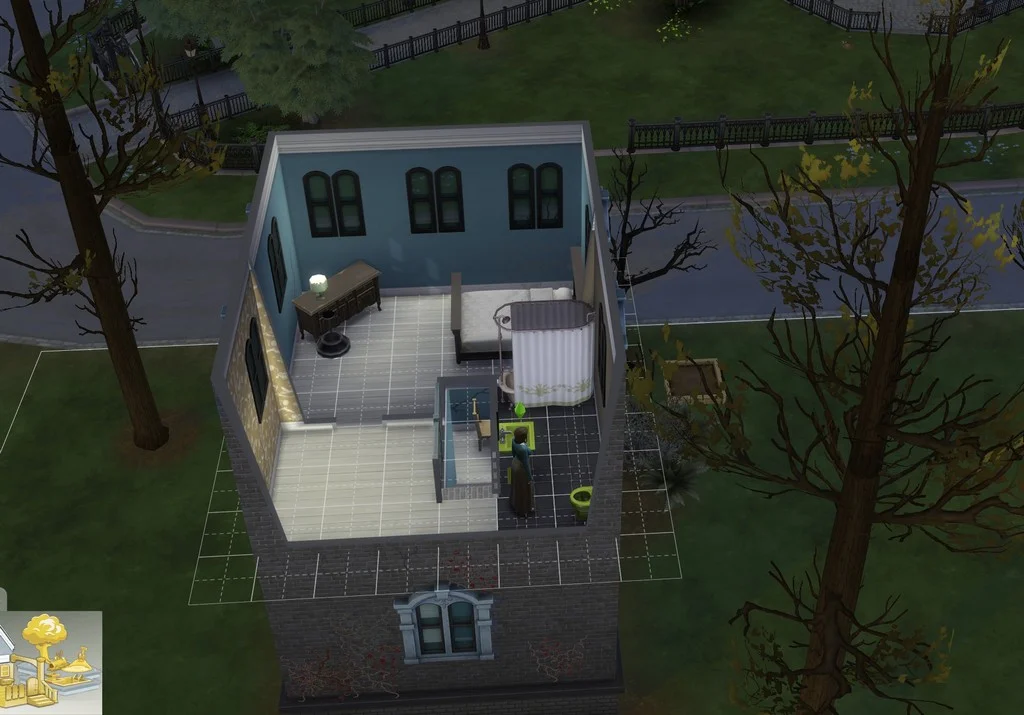
Even though the approach with buttons and shortcuts is far more convenient and doesn’t require you to leave the building mode as often, this works as well.
Why can’t you add a second floor to your house?
Sometimes, we can do everything right, but our second-floor button is simply greyed out, and we cannot move to the upper-floor room. This can occur for several reasons. Some of the possible reasons for the inability to build another floor to your Sims 4 house are as follows:
- Your walls aren’t connected. Generally, when placing walls, always ensure that you have managed to form a room and that the walls are appropriately connected. You can see if you’ve successfully built a room by toggling “Walls up view” or simply pressing the End key on your keyboard.
- You’ve reached the maximum number of floor limits. As mentioned, you can place up to four floors on a single lot in Sims 4. Sometimes, your lack of ability to add another floor is simply due to reaching the limit. In that case, a red message should appear when you’re trying to place walls.
How to add a basement to your house in Sims 4?
If you’ve reached the limit for placing floors in your house, you can always try expanding your house in the opposite direction by adding a basement. Adding a basement is not as simple as adding upper floors, however, as there is a specially made tool called the basement tool that can be found in the build mode.

To do that, follow these steps.
- Open the build mode.
- Locate the basement tool. You can find it by using the search function or going to the “walls and rooms” section of the building menu.
- Once you’ve grabbed the basement tool, trace the outline of your basement. The outline may correspond to the general outline of your ground floor, but it doesn’t have to. The basement is good as long as you can reach it, and it’s within the boundaries of your lot.
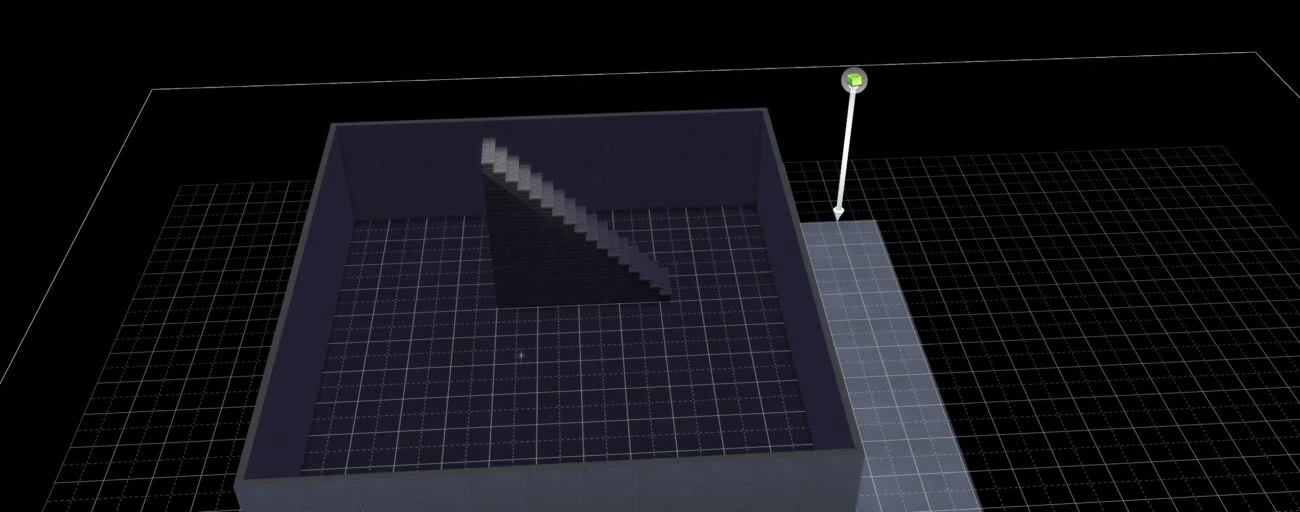
- Click on the “go down to a lower floor” button shaped like an arrow pointing downward in the upper right corner of the screen, or simply press PageDown on your keyboard.
- You should have a clear view of your basement.
Just like with upper floors, there is a limit to how many basement floors you can have in Sims 4, and it’s four in total. You will not be able to add the basement floor as soon as you reach that limit.
And that’s about it. As you can see, expanding your house in Sims 4 has never been easier. If you’re interested in more Sims 4-related guides, check out our guide on adding half cabinets to create your dream kitchen space.
Have something to add? Let us know in the comments below!