The Sims 4: How To Travel? (Step-by-Step Guide)


No matter how fancy our Sims house is and how many pets we’ve managed to cram into it, our Sims still get the urge to visit and explore the world once in a while. The Sims 4 added plenty of locations and activities to visit and attend with your Sims friends, and today’s guide will be dedicated to that, traveling in The Sims 4. The game brought many changes to world mechanics, and traveling is not the same as it was, but before we move on to analyzing details, let’s see how to travel in Sims 4.
How do neighborhoods work in The Sims 4?
As you’ve probably noticed, if you played the previous installment in the Sims franchise, The Sims 4 introduced some pretty drastic environmental changes.
The game is no longer an open-world experience; visiting any different lot now incurs a loading screen. This brought much frustration to the people playing on weaker hardware, and it generally tested the patience of many. For example, even visiting the neighboring plot of land or a house will cause a loading screen to appear.
This was a fair trade-off for more advanced Sims and more detailed worlds. You can manipulate the world, your house, and Sims in a much more advanced way than previously possible. But today’s topic are neighborhoods in general, and we’re going to use this opportunity to tell you more about them.
As we’ve mentioned, neighborhoods are now a part of a larger area called “worlds.” Each world has three or more neighborhoods that sims can visit and attend various activities. There are 18 worlds available in The Sims 4, and those are:
- Willow Creek
- San Myshuno
- Evergreen Harbor
- Oasis Springs
- Brindleton Bay
- Mt. Komorebi
- Selvadorada
- Henford-on-Bagley
- Newcrest
- Del Sol Valley
- Tartosa
- Granite Falls
- StrangerVille
- Copperdale
- Windenburg
- Sulani
- Britechester
- Group of independent neighborhoods
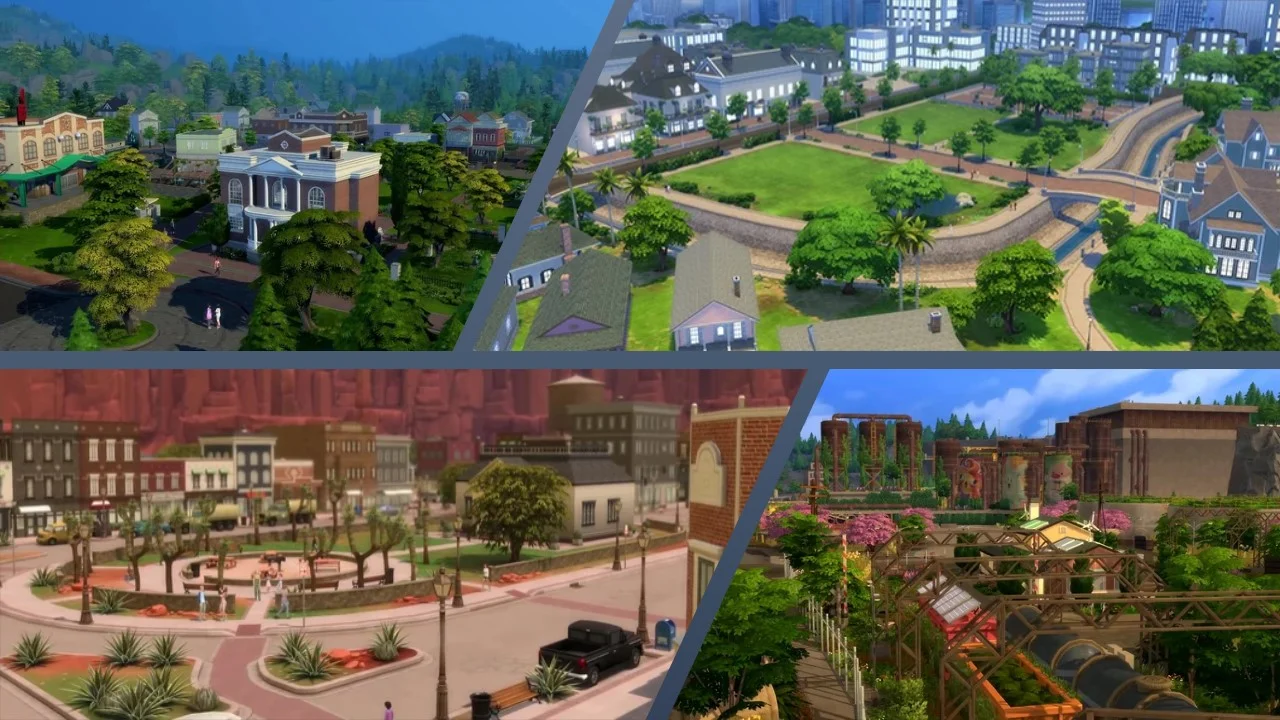
Some of these neighborhoods, like Granite Falls, Batuu, and Selvadorada, are so-called “destination worlds” that can be vacationed in and generally have different activities than your average residential worlds.

While you are visiting another lot or world with a single sim from the household, you will not be able to directly control other sims in your household, so keep that in mind when you’re traveling.
How to travel in Sims 4?
As we’ve mentioned before, you can travel with sims in The Sims 4 by using the map, phone, and computer. Occasionally, other friendly Sims will invite your Sims to join them on an adventure either by inviting your Sim on vacation or simply asking them for a fun night out. In the rest of this post, we’ll explain all the means of traveling in Sims 4.
Traveling in Sims 4 by using a map
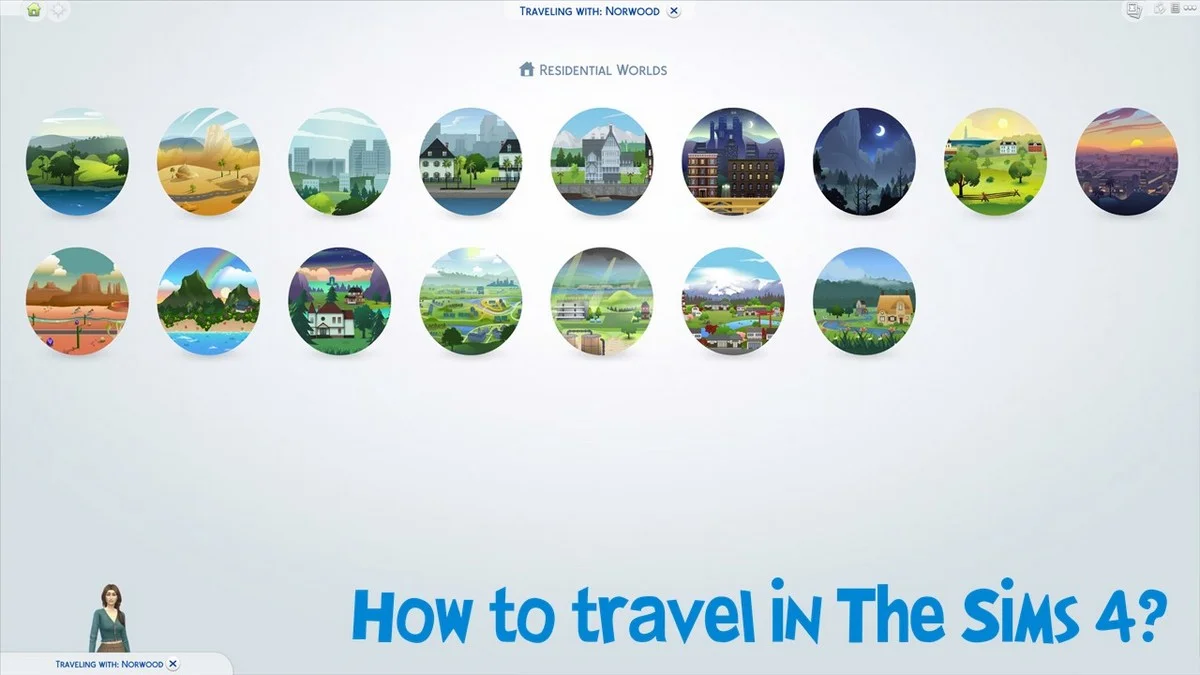
Traveling with a map is the most intuitive way to travel. You have the option to travel locally anywhere in your currently loaded world. Or you can merely press the globe icon and see all worlds available to you. To travel with a map in The Sims 4, follow these steps:
- Open your map by pressing “M.”
- The first screen will show your currently loaded world. You can toggle between your local residential world and all world by pressing the globe icon in the upper left corner of the screen.
- Select the world you would like to travel to.
- Select the lot in the world that you would like to travel to.
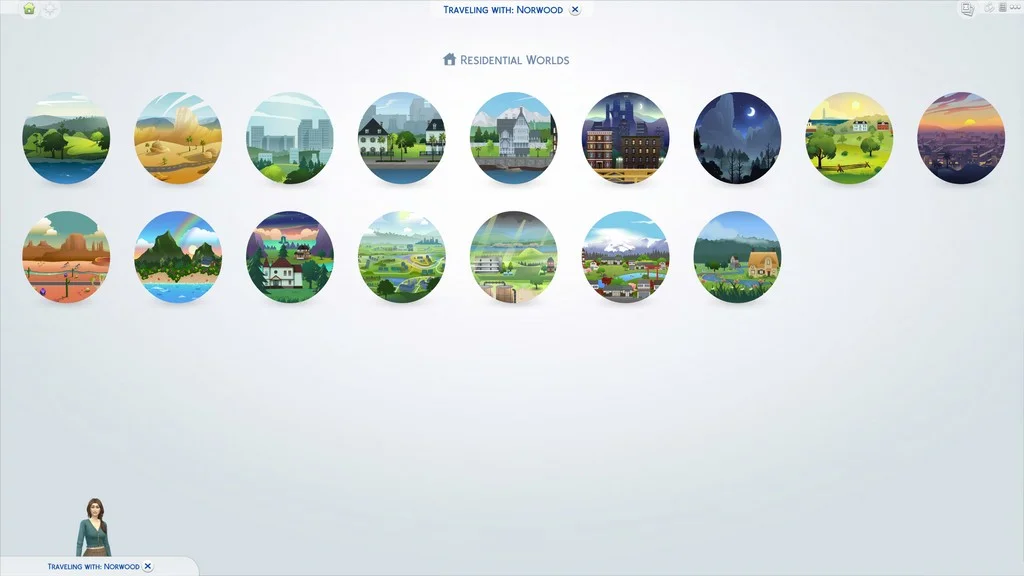
And that’s pretty much it. As you can see, the process is extremely simple, and there is very little space for error.
Traveling in Sims 4 via phone
Just like in real life, you can use your phone to travel in Sims 4. The process goes like this:
- Interact with your smartphone by pressing the corresponding icon.
- Select “travel” from the options.
- You will get to select whether you want to travel alone or with other Sims and choose what suits you best.
- The screen to select the world will appear again. You can choose any world and from there any lot to travel to.
- Click on a car icon in the bottom right corner of the screen.

Traveling via phone is quick and convenient if you plan on asking other sims to join you on your adventures. A prime example of technology used right.
Traveling in Sims 4 via computer
Besides trolling the forums, playing games, and learning useful skills, your Sims can use their PC to travel in just a few simple steps. To do that, follow these steps.
- Interact with your computer (if you have one).
- Select the “household” option.
- From there, select the “take a vacation” option.
- Another prompt will appear, asking you to select whether you want friendly Sims to join you on your adventures. It’s optional, so feel free to skip this.
- Another prompt will appear. This time you can choose between different destinations or residential worlds to vacation in. Choose the world and lot you would like to visit.
- Confirm your selection by pressing the big tick icon in the lower right corner of the screen.
- If you travel to the destination world, you must confirm your selection once again, where your total funds and costs of renting the place will appear. Press confirm if you have money to spend.

And that’s it. Every once in a while, even your Sim needs time to unwind, and what better way to do this than by taking a vacation somewhere exotic?
Traveling with other sims
Occasionally, other sims might invite you to join them at parties, vacation with them, or merely ask you to hang out on a second lot. You can refuse, of course, but your relationship with the particular Sim might suffer.
Joined activities with other Sims give you plenty of opportunities to raise relationships with them. So, I recommend you accept any invitation you get to maintain good standing with other Sims.
And that’s about it, everything about traveling in Sims 4. If you’re interested in more Sims-related guides, check out our guide on creating that perfect Sim for your next playthrough!
Have something to add? Let us know in the comments below!